 PhantomMic
PhantomMic for Windows
Early access
The free soundboard, with fourteen starter sounds to try. It installs just for you, with no admin rights needed, and keeps itself up to date, which is more than can be said for most things.
SHA-256 b53ca499212f54c65e8332bebfeb090f326ac7eb8e16aadf218cd1b8e881cedc
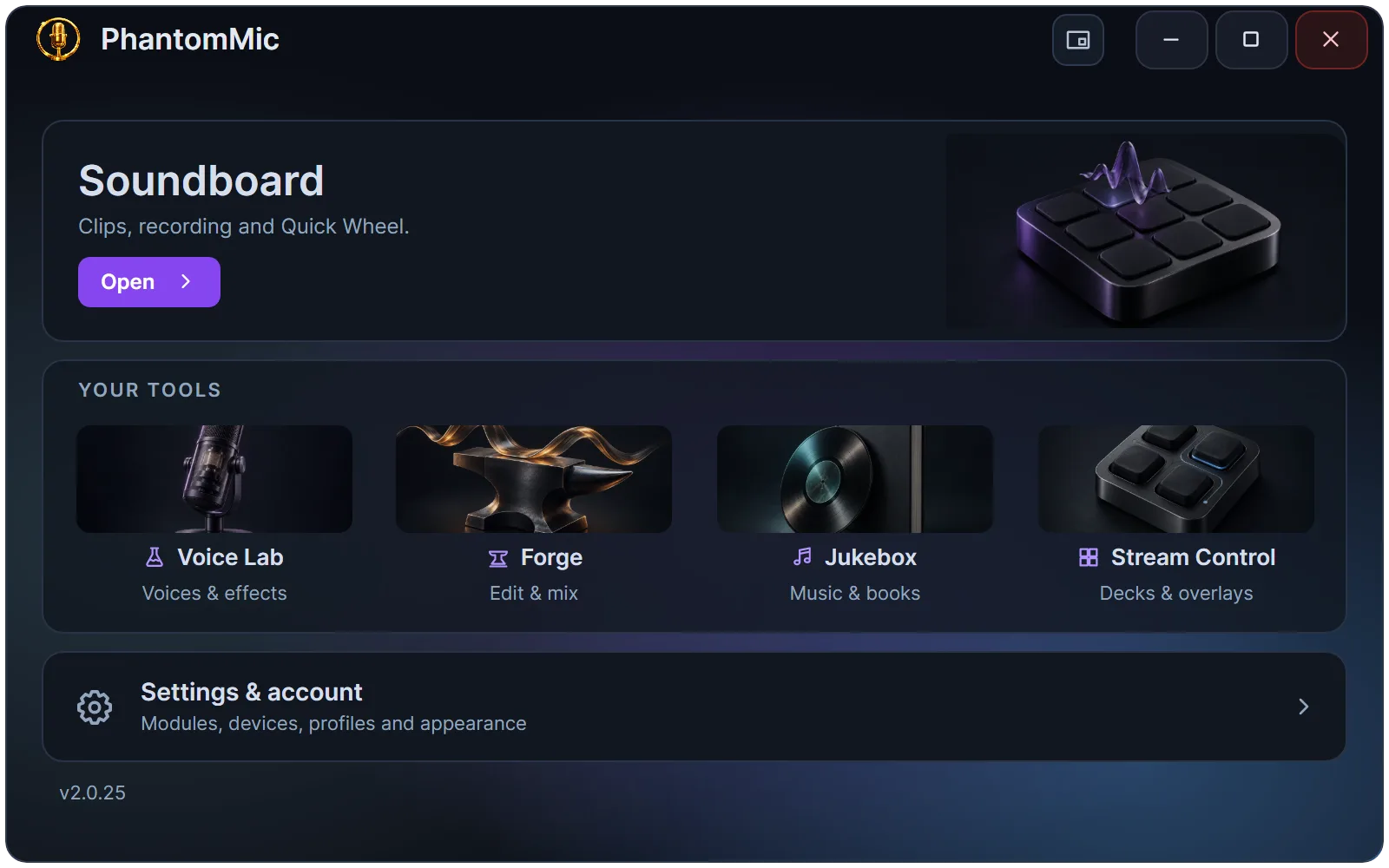
Three steps, and a short tour
The first time you open PhantomMic, a guided tour walks you through all of this. You can take it again from Help.
Install
Run the installer. It offers to set up the free VB-CABLE virtual audio driver, which carries your sounds to voice chat.
Pick your microphone
Press the plug to send to voice chat, then choose CABLE Output as the microphone in your voice app. PhantomMic can also make it your Windows microphone, so most apps pick it up on their own.
Press a clip
Start with the fourteen starter sounds. Press one and everyone in your voice chat hears it.
Add modules from inside the app
Open Settings & account from the launcher, sign in, and install only what you use. Each module is a small download.
Forge
Build new clips from yours on a multi-track timeline.
Voice Lab
Change how you sound in voice chat, live, and turn lines into clips in character voices.
Jukebox
Play music and audiobooks to yourself, to voice chat, or both.
Quick Wheel
Hold a key in game, flick toward a clip, and it plays.
Stream Control
Fire clips from a button deck or another app, and show what's playing on stream.